Your dashboard pulls logged-in students, assignment completion, and login codes into one screen. Here's what each panel shows you, and where to look before a principal, coach, or parent conversation.
The cart's parked by the door, and your students already know the drill: grab a Chromebook, find your seat, log in. Within five minutes half the class is waving a hand and calling out “I'm done!” You know some of them mean it, and some of them mean they clicked through without watching or reading. With 25 kids on 25 screens, there's no way to check each one before you have to move on to the next thing. By the end of the day, you're going on memory and whatever you half-noticed while you were walking the room.
The Dashboard is where you go to actually find out. It's the first screen you land on when you log in to Pathful Junior, and it pulls your current activity into one place: who's currently logged in, what you've assigned, and how far each group has gotten. Here's what each part shows you, and where to go when you need to hand that progress to someone else.
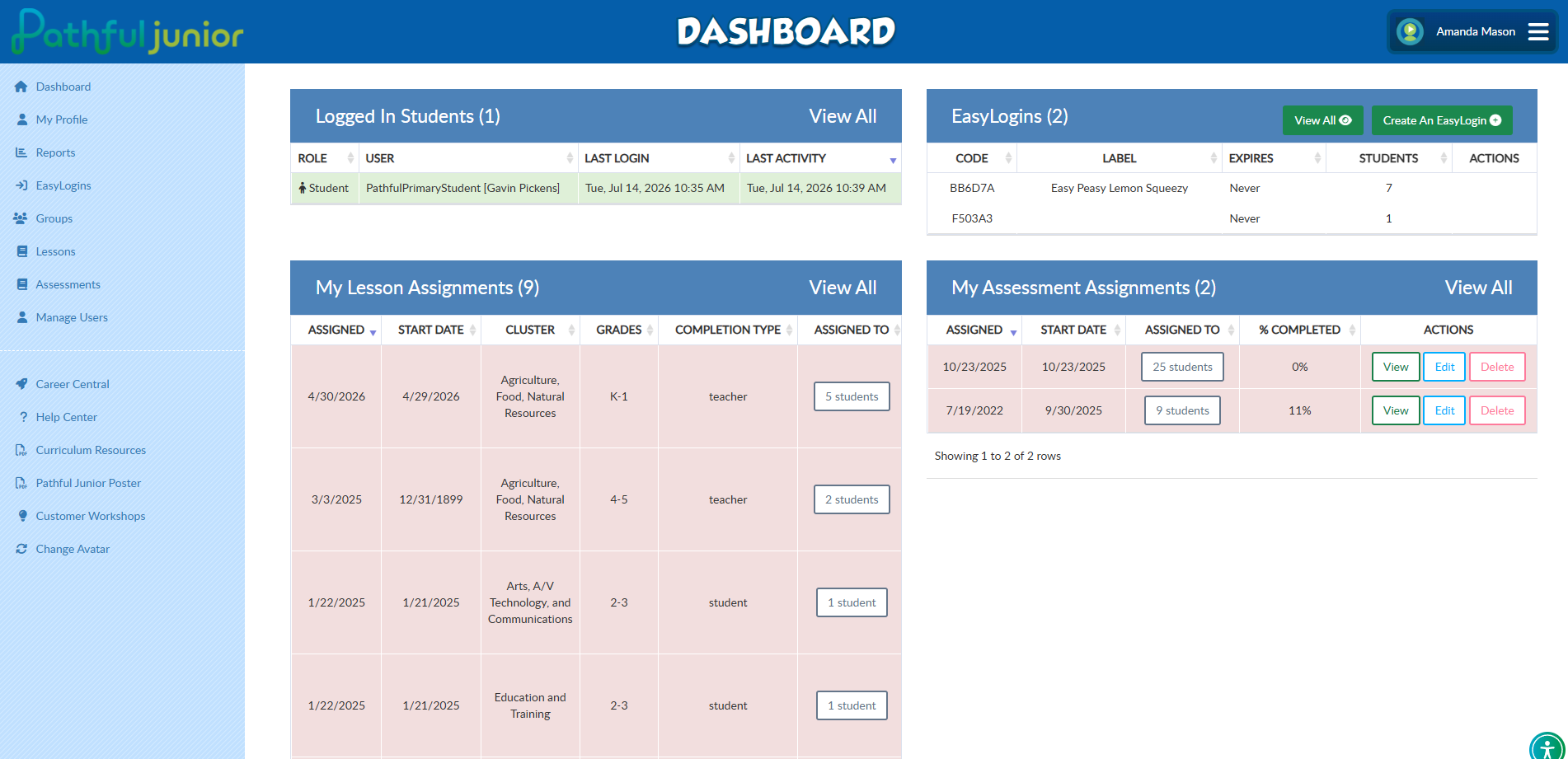
Your dashboard shows what's happening right now
Everything here reflects the present moment: assignments in progress, current completion numbers, students logged in. For anything older, or a fuller record to hand off, that lives under Reports in the left menu. The dashboard is for the daily check. Reports are for when you need the bigger picture.
See who's working during class
The Logged In Students panel shows exactly who's in the platform at that moment, along with their last login and what they were last doing. Outside of class you'll usually see no one logged in, and that's normal. Once the lesson starts, pull this up while you're circulating. One glance tells you the class got in and started moving, instead of finding out five kids are stuck on a login screen while you're helping someone else.
Track lesson progress from one panel
The My Lesson Assignments panel is where you'll spend most of your time. Each row is one assignment: the Cluster it belongs to, the Grades band it's built for, who you assigned it to, and the % Completed for that group.
That last column is the one to watch. Say you assigned a lesson two weeks ago and it's still sitting at 0%. That's your cue to check in, hand out the login code again, or work it into tomorrow's block before it gets forgotten entirely. Click View All to see everything you've assigned, not just the five rows on screen.
Check the Grades column while you're there, too. It's an easy way to confirm you matched the right lesson to the right group, especially if you teach more than one grade level.
Confirm the Interest Assessment got done
The My Assessment Assignments panel tracks the Interest Assessment the same way: when you assigned it, who received it, and how many have finished. Check it before you gather the class to talk through results, or before a one-on-one conversation with an older student about what they discovered. If it's still at 0%, that's your sign to carve out some time.
See your login codes at a glance
The EasyLogins panel lists the codes you've set up: a label, an expiration date, and how many students are attached to each one. You can edit a code or create a new one right from here. When a student says their code won't work, this is the first place to look. Nine times out of ten, they are entering it wrong, it's expired, or it was never assigned to them.
Individual results start with individual assignments
The % Completed column only tracks students working through an assignment on their own. Run a whole-class lesson from the front of the room, and it was never assigned to individual students, so there's no per-student data to check afterward.
Both ways of running a lesson work. Whole-class is faster and gets everyone through new content together. Assigning it individually takes more setup, but it's how you find out who's actually engaging and who needs a follow-up.
The Interest Assessment is different. Assign it to each student instead of running it whole-class. You want to know where each kid landed, not just a general sense of how the class reacted. Check the My Assessment Assignments panel to confirm everyone's finished before you build a discussion or a goal-setting conversation around the results.
Bring the right number to the right conversation
Your principal wants to know the program is actually being used. Pull up My Lesson Assignments and tell her how many you've assigned this month and how many are finished. It's a fast, honest answer, and you don't need to prep anything ahead of time.
An instructional coach is going to ask something more specific: which lessons are landing and which ones aren't. Look at where completion is high versus where it's stalled and talk through why. Check the Interest Assessment completion too. A coach may want to know if students have taken it yet, since it often shapes what comes next in your planning.
At parent-teacher conferences, families aren't asking about the class. They want to know about their kid. The Interest Assessment is the easiest thing to bring up: what career clusters their child showed interest in, and what that might mean for what you explore with them next. It's a lot more useful to a parent than a completion number.
Start here
Open your dashboard tomorrow and check one thing: the % Completed column on your most recent lesson assignment. If it's lower than you expected, you already know your next move: a reminder to the class, ten minutes carved out before the day ends, or a quick check that everyone's login still works. You don't need to track down all 25 kids by name to know who needs the follow-up. The dashboard already told you.
Was this article helpful?
Thanks for letting us know!

Keep exploring.
Can't find what you need?
Our support team is here to help you make the most of Pathful.