
How to Build Custom FlexLessons in Pathful
Learn how to build Custom FlexLessons in Pathful by cloning or creating lessons from scratch, reordering activities, editing prompts, and adding accountability. This beginner-friendly guide walks educators through simple, practical ways to personalize lessons and reuse them with confidence.
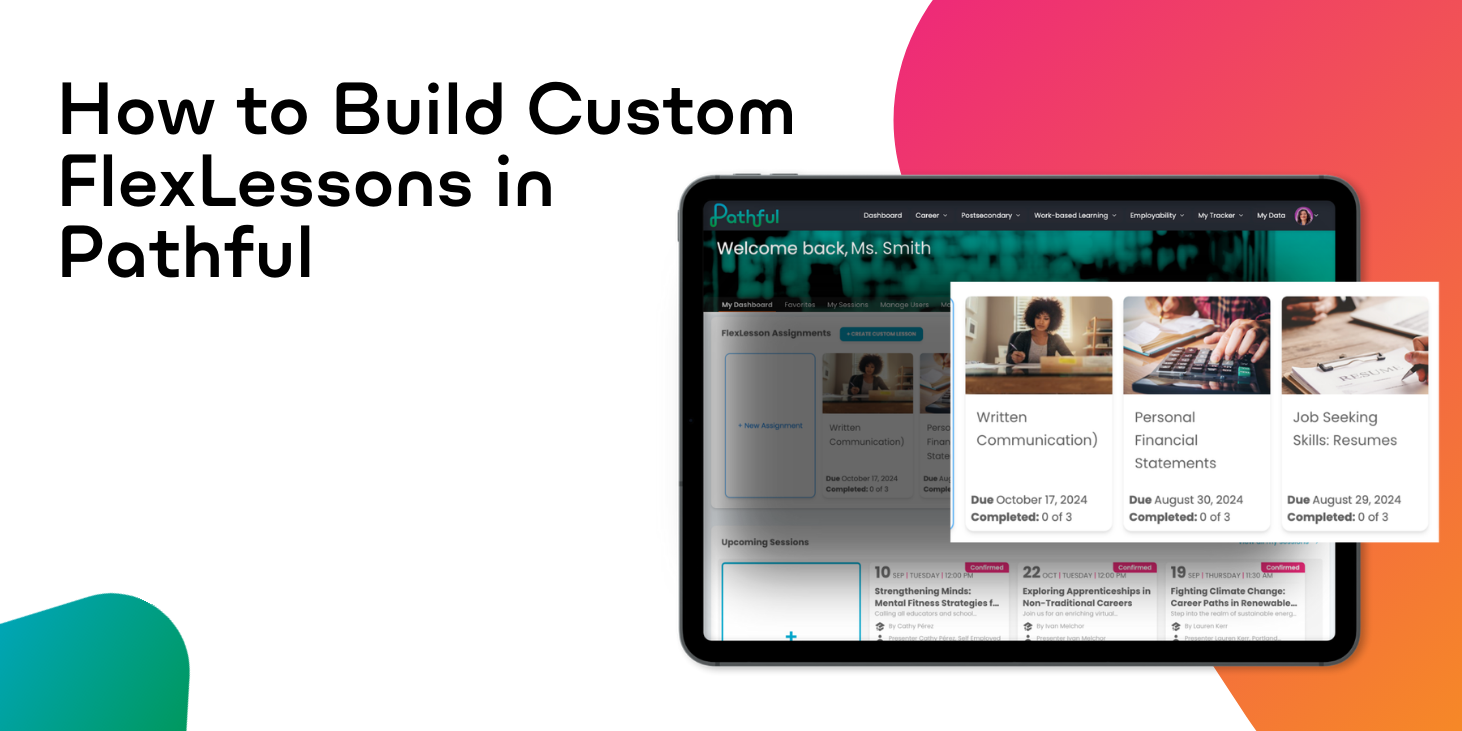
A Beginner’s Guide to Personalizing Pathful
If you already use Pathful FlexLessons but have not created a Custom FlexLesson yet, this guide is for you. Custom FlexLessons allow you to personalize activities, adjust pacing, and combine tools so lessons work the way you need them to.
This article focuses on how customization works inside Pathful. You will see what you can change, how the activity menu is structured, and a few reliable ways educators personalize lessons without adding unnecessary complexity.
What Makes a FlexLesson “Custom”
A Custom FlexLesson is a FlexLesson that you have created or edited. You can create one from scratch, or you can start by cloning an existing FlexLesson or Custom FlexLesson and then customizing it.
Many educators choose to clone an existing lesson because it provides a strong starting structure while still allowing full flexibility. Others prefer to build a Custom FlexLesson from the ground up when they have a very specific experience in mind. Both approaches are fully supported.
Once a FlexLesson is custom, you have complete control over:
- Which activities are included
- The order activities appear in
- Instructions, prompts, and expectations
- Which tools and content are used together
- How students demonstrate completion or understanding
Custom FlexLessons are designed to be reusable and adaptable. You can revisit, clone, and refine them over time.
Touring the Activity Menu
The activity menu is the foundation of customization. Understanding what is available makes it much easier to design lessons intentionally.
Custom FlexLessons support two broad categories of activities.
Pathful Tool Activities
These activities connect directly to Pathful tools and allow students to engage with them as part of a lesson. Many commonly used tools are available, making it easy to combine exploration, planning, and reflection in one place.
Not every Pathful tool appears as a FlexLesson activity option. The tools included here are intentionally selected to work well within lesson flow, so think of them as curated building blocks rather than a complete list of everything in the platform.
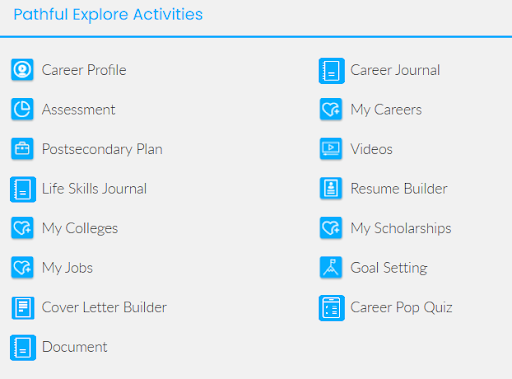
- Career Profile
- Assessment
- Postsecondary Plan
- Life Skills Journal (Employability Skills Journal)
- My Colleges
- My Jobs
- Cover Letter Builder
- Document
- Career Journal
- My Careers
- Videos
- Resume Builder
- My Scholarships
- Goal Setting
- Career Pop Quiz
Other Activities
Other activities allow you to add structure, reflection, and accountability to a lesson. They are typically used to support checkpoints, completion, and supporting content around Pathful tools.
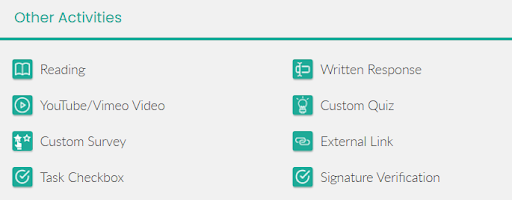
- Reading activities
- Written responses
- Custom quizzes or surveys
- Task checkboxes
- Signature verification
- External links
- YouTube or Vimeo videos
These activities can stand alone or support Pathful tools already included in the lesson.
Reliable Customization Patterns You Can Reuse
You do not need a new approach for every lesson. Many educators rely on a small set of patterns that work across classes and contexts.
Add a Warm-Up or Check-In
A short survey, question, or written response at the start of a lesson helps students focus and gives you insight into what they already know before they begin.
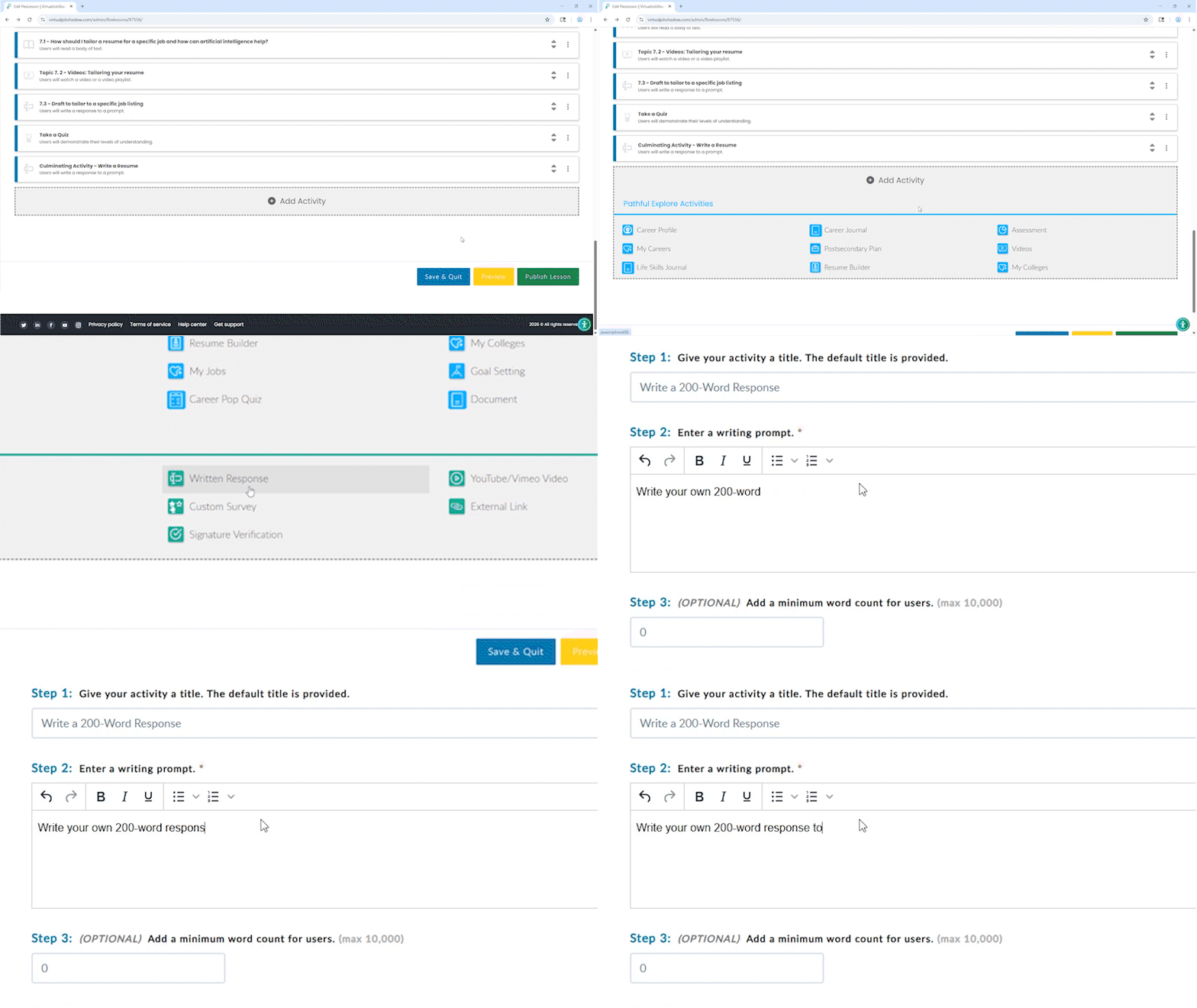
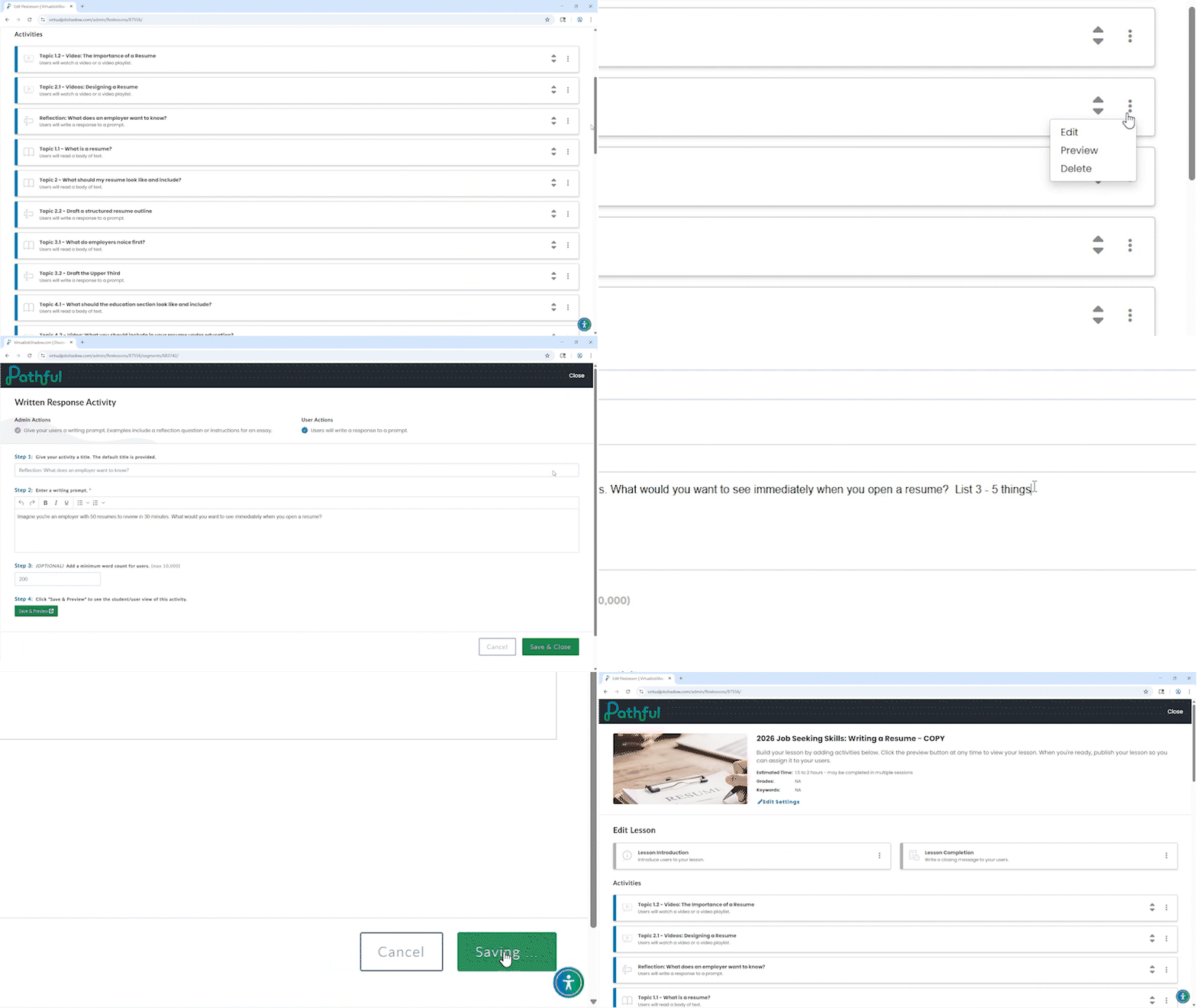
Edit Reflection Prompts to Match Your Classroom
Editing prompts is one of the fastest ways to personalize a FlexLesson. You can adjust language, add clarity, or include sentence starters so instructions sound like you.
This small change often improves student responses without altering the overall structure of the lesson.
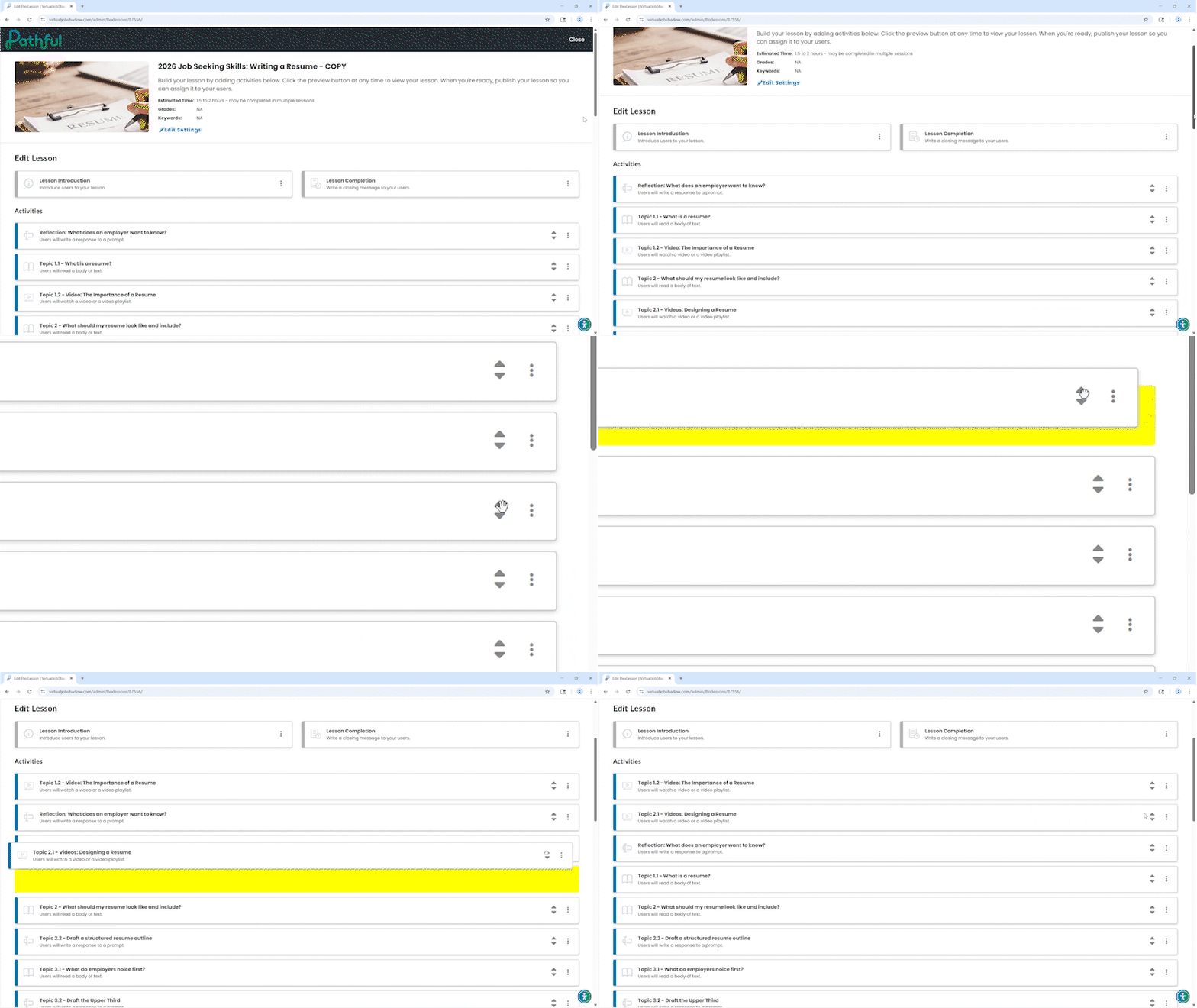
Reorder Activities to Fit Your Time
Activities can be moved to match the time you have available. You might move a reflection earlier for a short session, save a longer activity for a later day, or remove an optional step when time is limited.
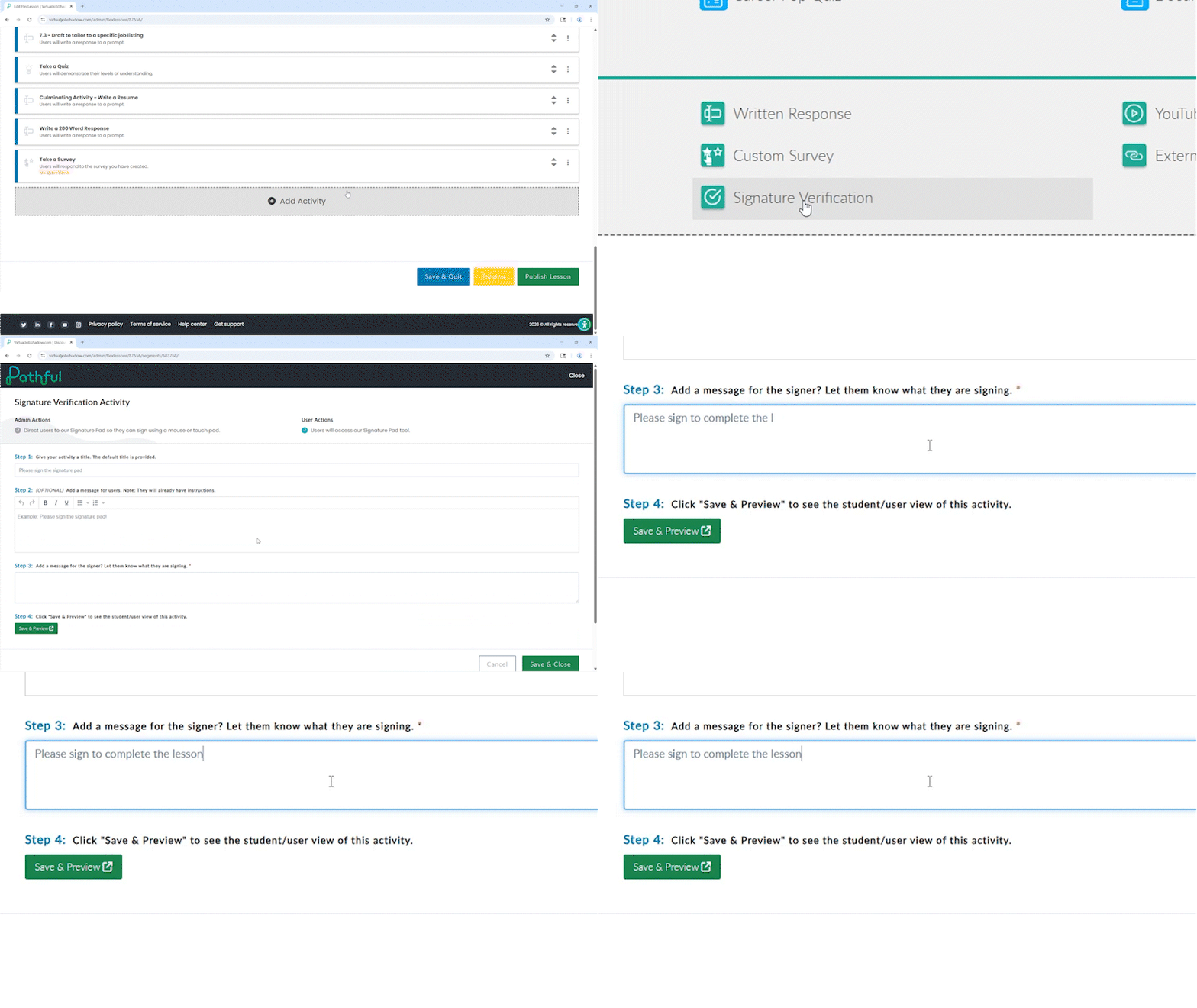
Add a Simple Accountability Check
Task checkboxes, short written responses, or signature verification activities help confirm participation without adding grading complexity. These are especially helpful for self-paced or out-of-class work.
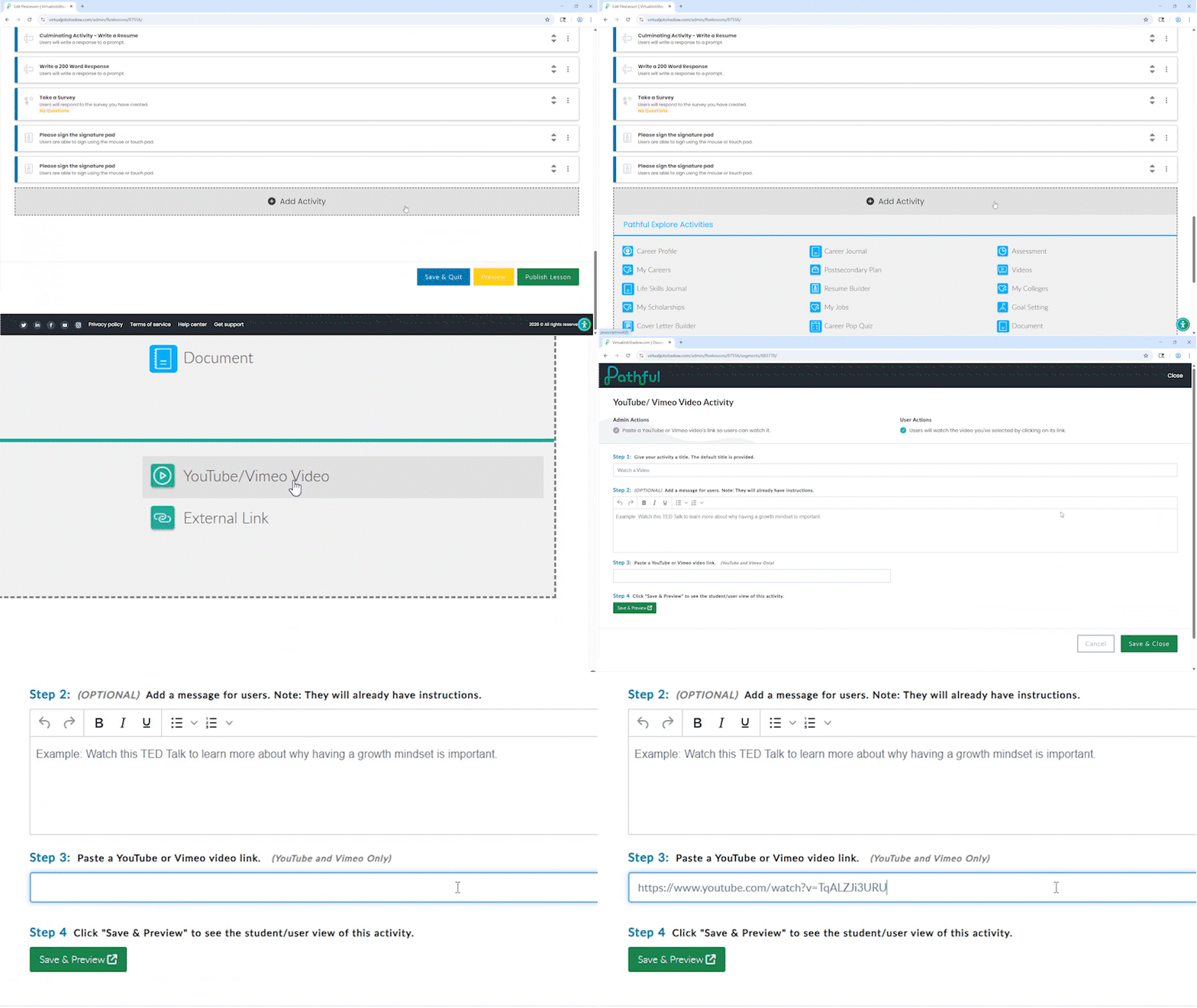
Localize the Lesson
External links or videos allow you to connect Pathful activities to local careers, community partners, or classroom projects. This adds relevance without changing the core lesson goals.
Build Your First Custom FlexLesson in About 10 Minutes
If you are new to creating Custom FlexLessons, the goal is not to design something perfect. The goal is to make a small, intentional change that helps a lesson fit your context.
A simple first pass can be done quickly.
- Start with a base
Choose an existing FlexLesson to clone, or create a new Custom FlexLesson from scratch if you already know what you want students to do. Starting from a clone is often faster and gives you a clear structure to work from. - Make one structural adjustment
Reorder, remove, or add a single activity so the lesson fits your time or flow. - Clarify expectations
Edit one set of instructions or prompts so students understand what to do and what completion looks like. - Add one accountability point
Include a simple checkpoint such as a task checkbox, short response, or completion confirmation. - Save, assign, and reuse
Once saved, the lesson can be assigned, cloned again, or refined later.
That is enough to create a Custom FlexLesson that feels intentional and classroom-ready.
Common Customization Pitfalls and Easy Fixes
Even experienced users sometimes run into the same challenges.
- Too many activities
Remove optional steps first. Shorter lessons are often more effective. - Directions feel unclear
Add one sentence explaining what success looks like. - Students rush through activities
Add a short written response or checkbox to slow the pace. - Too many external links
Choose one strong resource instead of several to maintain focus.
Customization works best when it simplifies, not when it adds more.
Assigning, Cloning, and Reusing Custom FlexLessons
Custom FlexLessons can be assigned to individuals or groups and reused across classes or school years. You can also clone any Custom FlexLesson to create a new version, allowing you to make adjustments without affecting the original.
This makes Custom FlexLessons a practical option for educators who want flexible content they can refine, duplicate, and adapt over time.
What to Try Next
- Create a Custom FlexLesson and make one small change
- Explore the activity menu to see options you have not used yet
- Reuse a Custom FlexLesson and refine it based on student responses
Custom FlexLessons are designed to support flexibility, not perfection. Start small, build confidence, and let Pathful work the way you need it to.
.webp)
.png)
.png)


.png)






.png)
.png)

.png)

.png)
.png)




.png)
.png)



.png)

.png)


.png)


.png)
.webp)

.png)
.png)

.png)
.png)
%20(1).png)
.png)
.png)


.png)


.png)



.png)

.png)

.png)
.png)




.png)



.png)

.png)





.png)
.png)



.webp)
.webp)
%20(1)%20(1).webp)
.webp)
.webp)